Events and key presses
So far the main loops have handled one kind of event, pygame.QUIT. But pygame.event.get() hands the program every event: each key pressed or let go, each mouse click, each move of the mouse. Printing them shows what they look like:
import pygame

pygame.init()
window = pygame.display.set_mode((320, 240))

while True:
    for event in pygame.event.get():
        print(event)
        if event.type == pygame.QUIT:
            exit()

    window.fill((0, 0, 0))
    pygame.display.flip()
The window as text
fill (0, 0, 0)
<Event(768-KeyDown {'key': 97, 'mod': 0, 'scancode': 0, 'unicode': 'a'})>
<Event(769-KeyUp {'key': 97, 'mod': 0, 'scancode': 0})>
<Event(1025-MouseButtonDown {'pos': (100, 60), 'button': 1, 'touch': False})>
<Event(1026-MouseButtonUp {'pos': (100, 60), 'button': 1, 'touch': False})>
<Event(768-KeyDown {'key': 1073741904, 'mod': 0, 'scancode': 0, 'unicode': ''})>
<Event(256-Quit {})>
Every event is an object with a type, and each type has attributes of its own. A key event's key is a number for the key: 97 is the A key, and 1073741904 the left arrow. Nobody remembers such numbers, so pygame has a name for each one: pygame.K_a, pygame.K_LEFT, pygame.K_RIGHT, pygame.K_UP, pygame.K_DOWN, pygame.K_SPACE, pygame.K_RETURN and so on. A mouse button event has the point where it happened in pos and the button in button. (On your own computer, the events have a few more details, and there are more of them: one for every move of the mouse over the window, for example.)
The event types have names too:
| Type | When |
|---|---|
pygame.KEYDOWN |
a key is pressed down |
pygame.KEYUP |
a key is let go |
pygame.MOUSEBUTTONDOWN |
a mouse button is pressed |
pygame.MOUSEBUTTONUP |
a mouse button is let go |
pygame.MOUSEMOTION |
the mouse moves |
pygame.QUIT |
the window is closed |
Reacting to keys
To react to a key, check the event's type first and then its key:
import pygame

pygame.init()
window = pygame.display.set_mode((320, 240))

while True:
    for event in pygame.event.get():
        if event.type == pygame.KEYDOWN:
            if event.key == pygame.K_LEFT:
                print("left")
            if event.key == pygame.K_RIGHT:
                print("right")
        if event.type == pygame.QUIT:
            exit()

    window.fill((0, 0, 0))
pygame.display.flip()The window as text
fill (0, 0, 0)
right
left
right
Only a KEYDOWN event has a key that this program cares about, so the KEYUP events pass by without printing anything.
On this site you can try it yourself: run the program, click in its window and press keys. A test gives the events itself, and the task card lists them, such as "After 3 frames: the right arrow is pressed and let go."
Moving with the keys
Now the key presses can move the robot. Each press of an arrow moves it 10 pixels:

robot.png, 40 × 40 pixelsimport pygame
pygame.init()
window = pygame.display.set_mode((320, 240))
robot = pygame.image.load("robot.png")
x = 140
y = 200
while True:
for event in pygame.event.get():
if event.type == pygame.KEYDOWN:
if event.key == pygame.K_LEFT:
x -= 10
if event.key == pygame.K_RIGHT:
x += 10
if event.type == pygame.QUIT:
exit()
window.fill((0, 0, 0))
window.blit(robot, (x, y))
pygame.display.flip()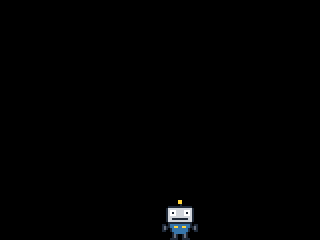
The window as text
fill (0, 0, 0)
blit robot.png at (160, 200)
Three steps right and one left: the robot ends 20 pixels right of where it started, at (160, 200). The events are handled at the start of each round, before the drawing, so a press shows in the very next frame.